Wi-Fi Not Working After a Power Outage? How to Get Your Home Internet Back After a Florida Storm
The lights are back on, the air conditioner is humming, and the TV works. But your phone is stuck on cellular, the laptop says “No Internet,” ...
The lights are back on, the air conditioner is humming, and the TV works. But your phone is stuck on cellular, the laptop says “No Internet,” and the smart speaker in the kitchen is blinking at you. If your Wi-Fi is not working after a power outage, you have one of the most common tech problems in Central Florida, especially from June through November when afternoon storms and the occasional hurricane knock the power out for anything from thirty seconds to three days.
The good news is that most of the time nothing is broken. Your modem, router, and mesh units came back up in the wrong order, or your provider is still restoring service in your neighborhood. This guide walks through the fix in the order that actually works, and explains when the outage really did damage something. We help homeowners across Orlando, Lake County, Clermont, Winter Garden, Mount Dora, Eustis, Tavares, and Apopka get back online, so everything below comes from real living rooms.
Why Your Wi-Fi Is Not Working After a Power Outage
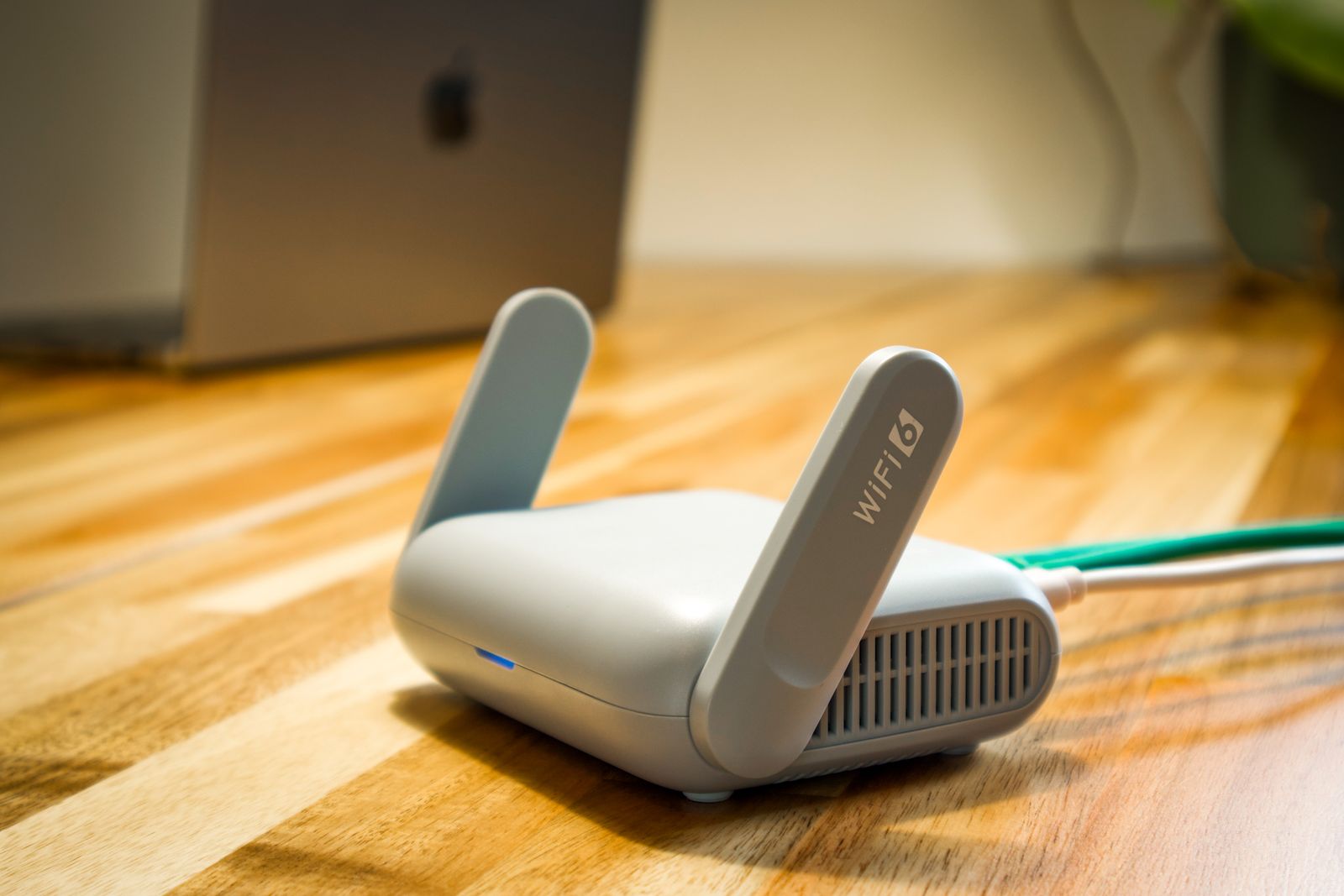
Your home internet is a chain of devices that all lost power at the same instant: the box from your provider (a cable modem, a fiber terminal, or a Starlink dish), the router that creates the Wi-Fi network, any mesh satellites or extenders around the house, and finally your phones and smart devices. When power returns, everything boots at once, and the router often finishes starting before the modem has found a signal. The router then broadcasts a Wi-Fi network that goes nowhere. On top of that, the provider’s equipment on the pole or at the neighborhood node may still be down even though your house has power. Two different problems, same symptom: the Wi-Fi name shows up, nothing loads.
1. First, Find Out If the Internet Is Actually Back
Before touching a cable, rule out your provider. Open the carrier app on your phone (Spectrum, Xfinity, AT&T, and Frontier all have one) or load their outage page over cellular data. If it shows an outage in your area, nothing in your house will fix it, and rebooting ten times only wastes an evening. In Lake County and the rural edges of Orange County, the neighborhood node can lag the power company by several hours, and sometimes a full day after a named storm. If the provider says all clear and you are still down, move on to the restart.
2. The Restart Order That Actually Works
Unplug the power from the modem (or fiber terminal), the router, and every mesh satellite or extender. Wait a full minute so the devices truly reset. Plug in only the modem and wait for its online or internet light to go solid, which can take two to five minutes after a storm because it has to re-register with the provider. Then plug in the router and give it two more minutes. Then the mesh satellites, one at a time. Finally, toggle Wi-Fi off and on your phone and laptop. Plugging everything back in at once is exactly what the power company did for you, and that is why it did not work the first time.
3. Read the Lights Before You Guess
The LEDs on the front of these boxes are the fastest diagnostic you have. On a cable modem, a blinking online light that never goes solid means it cannot reach the provider, so the problem is upstream. On the router, a red or orange internet light usually means it is not getting an address from the modem, which is the boot-order problem above. On a fiber terminal, a red alarm or “LOS” (loss of signal) light means the fiber itself is dark, and only the provider can fix that. Mesh systems like Eero, Google Wifi, Orbi, and Deco each show a specific color for “cannot find the main unit,” and their phone app will tell you which satellite is the problem.
4. Devices Connect But Still Say No Internet
This is the annoying middle case: your phone joins the Wi-Fi and nothing loads. Nine times out of ten the router came up before the modem and is holding a stale connection, and rebooting just the router clears it. If one device works and another does not, tell the stubborn one to forget the network and rejoin. Smart home gear is its own category. Thermostats, cameras, plugs, and doorbells almost always live on the 2.4 GHz band, and some routers bring that radio up a minute or two after the 5 GHz one. Give it five minutes before you start pulling batteries out of doorbells, then power-cycle any device that is still offline. For devices that drop in specific rooms, see our guide to fixing Wi-Fi dead spots.
5. When the Outage Really Did Break Something
Florida does not just lose power; it loses power because lightning hit something nearby. A surge rides in on the power line, the coax, or the phone line, and the cheapest component in the chain takes the hit. The usual victims are the little power brick for the modem or router (it looks fine but puts out nothing), the router’s WAN port, or the modem itself. Signs you are past a simple restart: no lights at all, a power brick that is hot or buzzing, a modem that reboots in a loop, or Ethernet ports that stay dark with a cable plugged in. Provider-owned gear gets swapped free, but it can take days to get a truck out after a storm. If you own your router, a tech can test the gear in your home, confirm what died, and get you running the same day.
6. Make the Next Outage Painless
A few cheap changes turn this into a non-event. Put the modem and router on a small battery backup (a UPS) with built-in surge protection. A basic unit costs under a hundred dollars, rides through the thirty-second flickers that cause most of these problems, and absorbs the surge instead of your equipment. If you have mesh units, make sure the main one is on the battery, because the satellites are useless without it. Label the cables and photograph the back of your setup so the restart order is obvious under stress, and bookmark your provider’s outage page on your phone.
The Bottom Line
Wi-Fi that will not come back after a power outage is almost always a boot-order problem or a provider outage, and both are fixable in minutes once you check things in the right order: confirm the provider first, restart from the modem outward, then read the lights. The exception is lightning, which quietly kills power bricks and ports that look perfectly fine. If you have done the full restart and the lights still say no, it saves time and money to have someone look at it in person. Home tech support is a normal part of what we do, not an afterthought.
Still staring at a blinking router after the storm has passed? Think Tech Support provides in-home and remote Wi-Fi, network, and smart-device repair for homeowners and businesses across Central Florida. Call us at (423) 486-6711 or reach out through our contact page for a free quote.