
Computer Running Out of Storage for No Reason? Where the Space Went and How to Get It Back
Your computer running out of storage is one of the most confusing warnings Windows can throw at you. You did not install anything new, you did ...
Your computer running out of storage is one of the most confusing warnings Windows can throw at you. You did not install anything new, you did not download a pile of movies, and yet the drive bar in File Explorer has turned red and the “low disk space” message keeps popping up. The good news: the space almost always went somewhere specific, and most of it can be recovered safely in an afternoon.
We get this call every week from homeowners and small offices across Orlando, Lake County, Clermont, Mount Dora, Eustis, Tavares, Winter Garden, and Apopka. Below is the same checklist our technicians run through, in the order that usually finds the missing space fastest, plus the warning signs that mean it is time for a bigger drive instead of another cleanup.
1. Why Your Computer Is Running Out of Storage “for No Reason”
There is always a reason, it is just hidden. The usual suspects are Windows Update leftovers, a bloated Downloads folder, temporary files that never get cleared, and cloud sync apps like OneDrive, iCloud, or Google Drive quietly copying your entire photo library down to the laptop. On a small 128 GB or 256 GB drive, any one of those can eat 30 to 60 GB without you ever noticing. The first job is to measure, not guess.
2. Find Out What Is Actually Taking Up the Space
Open Settings, System, Storage in Windows 10 or 11. It breaks your drive into categories like Apps, Temporary files, Documents, and Pictures, and you can click each one to drill in. For a more precise picture, a free tool such as WinDirStat or TreeSize Free draws a map of every folder sorted by size. Nine times out of ten, one or two giant folders jump out immediately: an old phone backup, a forgotten video project, or a game you have not opened in two years.
3. Clear Temporary Files and Old Windows Updates Safely
In that same Storage screen, click Temporary files. Check Windows Update Cleanup, Delivery Optimization Files, and Temporary Internet Files, then remove them. After a major Windows feature update, the “Previous Windows installation” entry alone can be 15 GB or more. One caution: uncheck the Downloads folder in that list unless you have looked through it first, because Windows will happily delete everything in there, including tax returns and that PDF you meant to keep. Turning on Storage Sense afterward lets Windows do this cleanup automatically every month.
4. Tame OneDrive, iCloud, and Other Sync Apps
This is the number one cause we find on home laptops. When a sync app is set to keep files “always on this device,” every photo from every phone in the household lands on the hard drive too. In OneDrive, right-click the cloud icon, open Settings, and turn on Files On-Demand, then right-click big folders and choose Free up space. The files stay safely in the cloud and download only when you open them. iCloud for Windows and Google Drive have similar “stream” or “optimize” settings. Just confirm your cloud plan actually has room before you rely on it.
5. Hunt Down Hidden Space Hogs
A few culprits do not show up in the obvious places. Old iPhone backups made through iTunes or the Apple Devices app can each be 50 GB or larger. System Restore points and the hibernation file can quietly reserve a big slice of the drive. Duplicate photos imported twice from a camera or phone are extremely common. And sometimes the “missing” space is a sign of something worse: a runaway log file, a misbehaving program writing data in a loop, or malware filling the disk. If the drive fills back up within days of a cleanup, that is your cue to have it looked at rather than to keep deleting.
6. Move Your Photos and Files Off the Main Drive
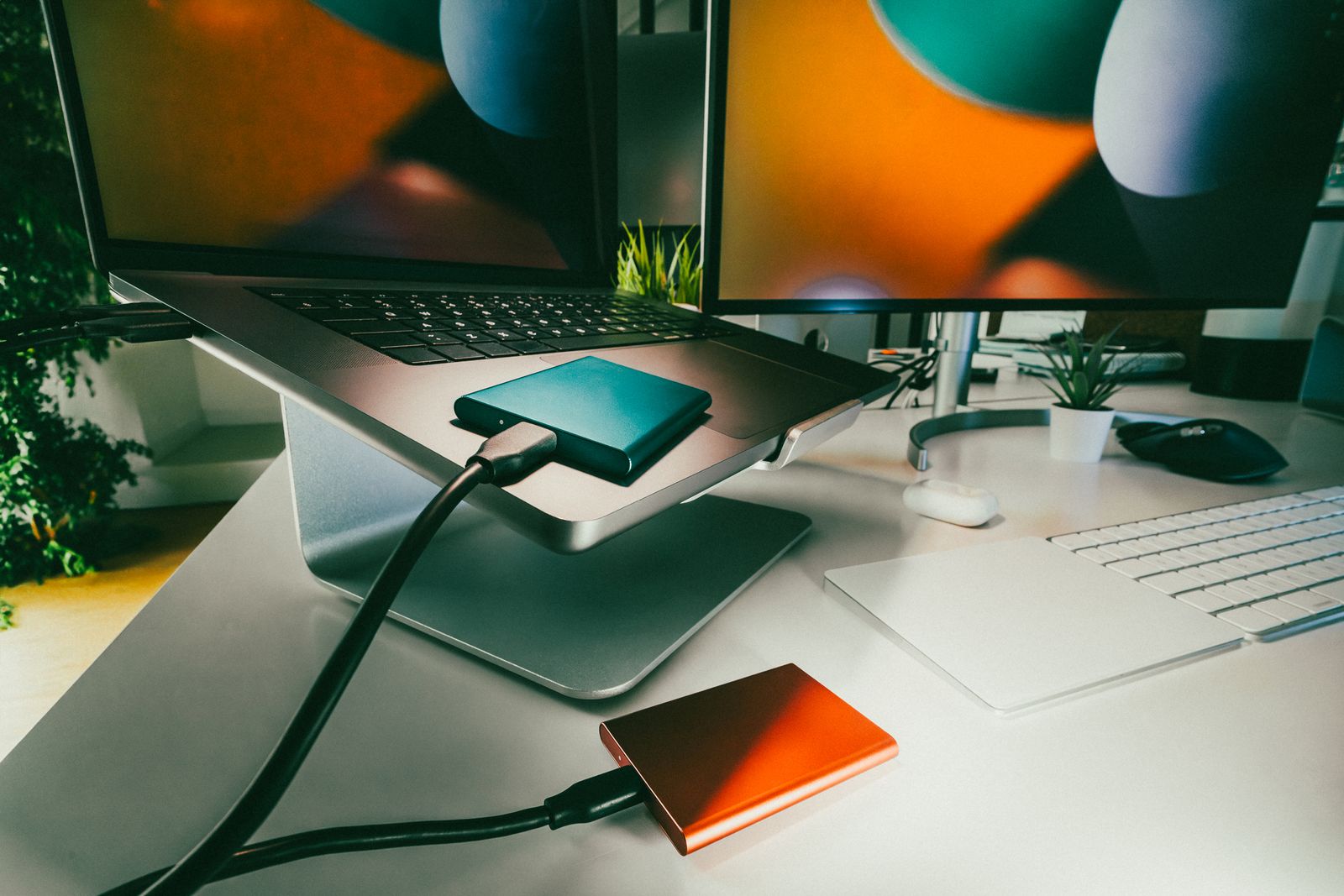
Family photos and videos are the heaviest thing most people own, and they do not need to live on the laptop’s internal drive. An external SSD costs far less than it used to and is fast enough to browse photos directly. The key is to treat it as a second home for those files, not your only copy. Keep a cloud backup or a second drive as well, because a single external drive dropped off a desk is a common way families lose years of pictures. If you are moving everything to a new machine anyway, our guide on how to transfer everything to a new computer walks through doing it without losing a single file.
7. When a Bigger Drive Is the Real Fix
If your computer is running out of storage on a 128 GB drive, cleanup only buys you time. Windows itself, plus updates and a handful of everyday apps, can consume most of that space before you save a single file. On many desktops and plenty of laptops, swapping in a 500 GB or 1 TB SSD is an affordable upgrade, and we can clone your existing drive so everything opens exactly the way it did before, just with room to breathe. A nearly full drive also slows the whole machine down, so if your PC has felt sluggish lately, it is worth reading why your computer is so slow all of a sudden too.
The Bottom Line
A computer running out of storage is rarely a mystery once you measure it. Check the Storage screen, clear temporary files and update leftovers, put your sync apps on a diet, and move photos to a backed-up external drive. If the space keeps vanishing or the drive is simply too small, a professional cleanup or SSD upgrade solves it for good. Our residential tech support team handles both, in person or remotely.
Tired of deleting files just to install an update? Think Tech Support cleans up full drives, sets up reliable backups, and installs faster, larger SSDs for homes and businesses across Central Florida. Call us at (423) 486-6711 or reach out through our contact page for a free quote.