Clicking Hard Drive Data Recovery: Why You Should Unplug It Right Now
You plug in your laptop or external drive and instead of the usual quiet hum you hear it: click… click… click. That sound is one of ...
You plug in your laptop or external drive and instead of the usual quiet hum you hear it: click… click… click. That sound is one of the most important warnings a computer will ever give you, and what you do in the next ten minutes decides whether clicking hard drive data recovery is a simple job or an expensive one. The short version: stop using the drive, unplug it, and do not let it keep clicking.
We see this every week from homeowners and small businesses across Orlando, Lake County, Clermont, Mount Dora, Eustis, Tavares, Leesburg, and Apopka. Family photos, QuickBooks files, client records, years of email. The good news is that most of it can be saved when the drive is handled correctly. Here is what is actually happening inside that drive, what not to try, and what a real recovery looks like.
1. What That Clicking Sound Actually Means
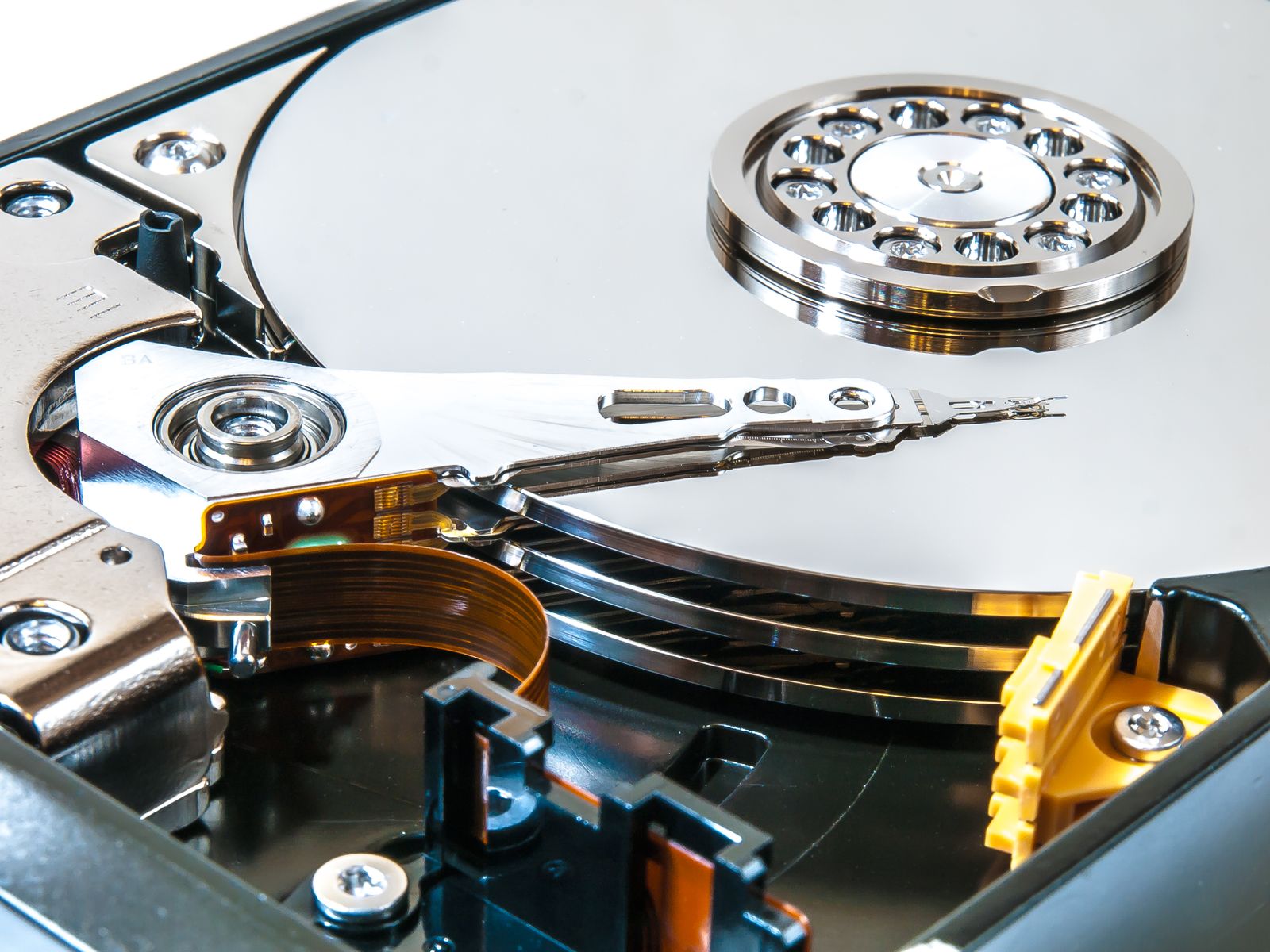
A traditional hard drive stores your files on spinning metal platters, and a tiny read/write head floats a few nanometers above them on an arm. The clicking is usually that arm swinging back and forth because the head cannot find or read the data it is looking for. It tries, fails, parks itself, and tries again. The cause might be a worn or damaged head, a failing motor, a firmware problem, or physical damage to the platter surface. Whatever the cause, the drive is telling you it is no longer reading reliably, and every retry is a fresh chance for a weak head to scrape the surface where your files live.
2. Why You Should Unplug It Immediately
The most common mistake we see is someone who heard clicking, then spent an evening rebooting, plugging the drive into different USB ports, and running free recovery programs. Each power cycle makes things worse. A head that is already damaged can start gouging the platters, and once the magnetic surface itself is scratched, that data is gone for good. If the drive is inside a laptop or desktop, shut the computer down. If it is an external drive, eject it and unplug it. Then leave it alone until someone with the right tools looks at it. Patience here is the single biggest factor in a successful recovery.
3. The Freezer Trick and Other DIY Fixes to Avoid
Search for a clicking hard drive fix and you will find advice to put the drive in the freezer, tap it on the desk, or swap the circuit board with one from eBay. These tricks come from drives built decades ago and they are far more likely to hurt than help on anything made recently. Freezing causes condensation on the platters. Tapping can knock a head into the surface. Modern circuit boards carry drive specific calibration data, so a swapped board usually will not work at all. Recovery software is fine for a deleted file on a healthy drive, but it forces a failing drive to read every sector over and over, which is exactly what you do not want.
4. How Clicking Hard Drive Data Recovery Works
A proper recovery starts with diagnosis, not guesswork. We check whether the problem is electronic, firmware, or mechanical, and how much of the drive is still readable. If the heads are still working, the drive is connected to hardware that clones it sector by sector, skipping bad areas on the first pass and returning to them later, so the healthy data comes off first while the drive still cooperates. Your files are then recovered from the copy, never the original. If the heads have failed, the drive needs a clean room repair where the head stack is replaced with a matched donor part, and we coordinate that with a trusted lab and keep you informed on cost before any work begins. You can read more about our approach on our data backup and recovery services page.
5. What It Means for Laptops, External Drives, and SSDs
Laptop drives take the most abuse because they get bumped, dropped, and carried around while running. External drives often fail after a fall off a desk or a yanked cable. Solid state drives do not click, because they have no moving parts, but they fail in their own ways: suddenly not showing up, freezing, or going read only. If your computer will not even boot, our guide on how to recover files from a dead laptop walks through the first steps. Whatever the type, the rule is the same: the less you power it on, the more you can usually save.
6. Setting Realistic Expectations
No honest technician can promise 100 percent recovery before looking at a drive, so be wary of anyone who does. In many cases where the drive was unplugged quickly, nearly everything comes back, including folder structure and file names. When a drive kept running for days after it started clicking, results can be partial. Cost depends mainly on whether the drive needs mechanical repair. We always give you a diagnosis and a clear quote first, and you decide whether the data is worth it before anything else happens.
7. Making Sure You Never Hear That Click Again
Every hard drive fails eventually. The real fix is making sure that when one does, it is an inconvenience instead of a disaster. That means an automatic backup to a second device plus a copy off site in the cloud, which is the heart of the 3-2-1 backup rule. For businesses we also monitor drive health remotely, so warning signs show up on our dashboard weeks before a drive starts clicking, and we replace it on our schedule instead of yours. For a home user, even a simple external backup and a cloud photo library covers most of the risk.
The Bottom Line
A clicking hard drive is not going to fix itself, and every minute it runs puts more of your data at risk. Shut it down, unplug it, skip the freezer, and get it to someone who will clone it properly before trying anything else. Do that and the odds of getting your photos, documents, and business files back are very good. Then set up a backup so the next failure costs you nothing but the price of a new drive.
Is a drive clicking at your home or office right now? Think Tech Support handles careful, no surprises data recovery and backup setup for homes and businesses across Central Florida. Call us at (423) 486-6711 or reach out through our contact page for a free quote.