What to Do If You Clicked a Phishing Link: The First 30 Minutes Decide How Bad It Gets
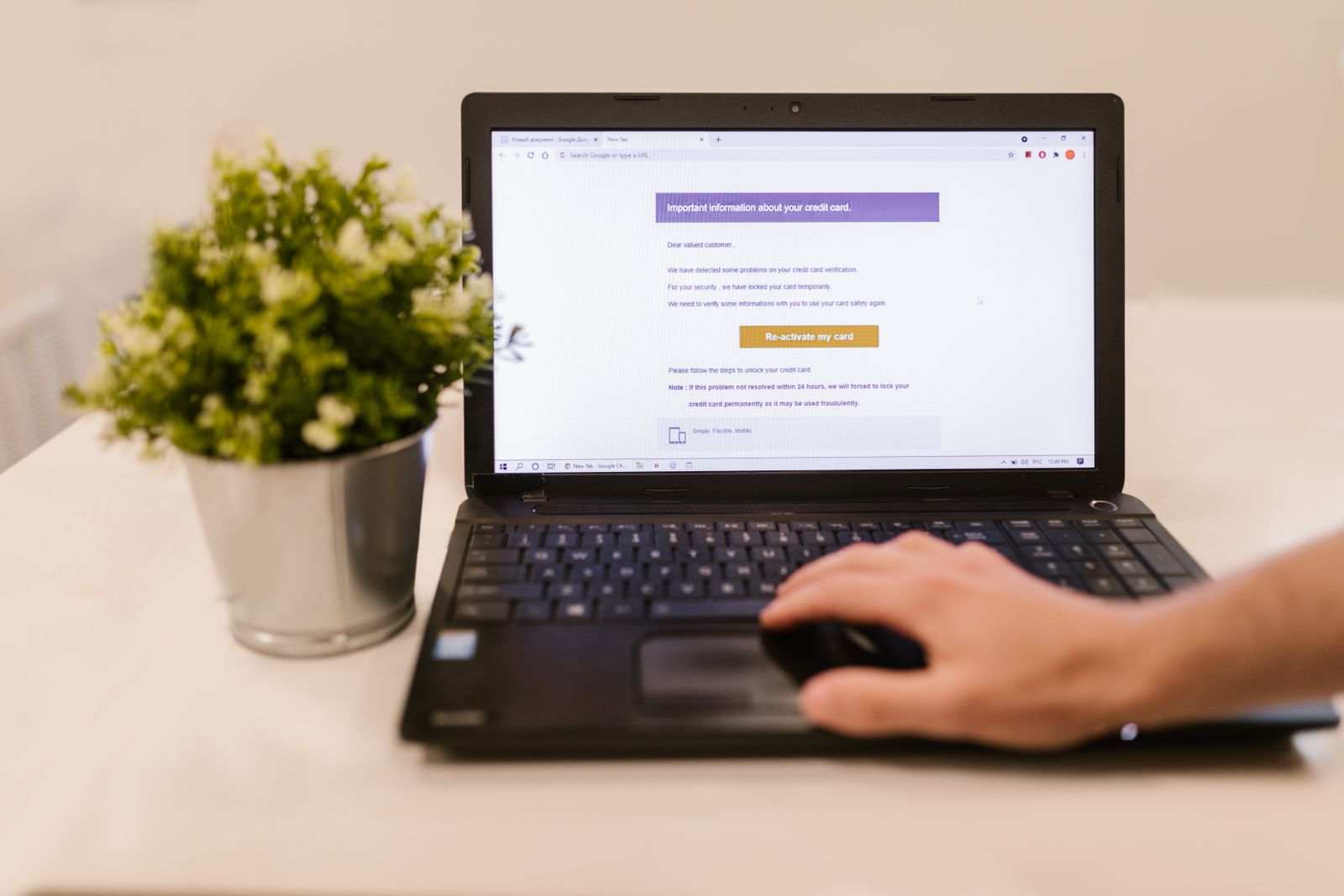
It happens to careful people every day. An email that looks like it came from your bank, Microsoft, UPS, or your own boss lands in your ...
It happens to careful people every day. An email that looks like it came from your bank, Microsoft, UPS, or your own boss lands in your inbox, you tap the link, and a second later your stomach drops. If you are searching for what to do if you clicked a phishing link, the good news is that clicking by itself is rarely the disaster. What you do in the next half hour is what separates a close call from a drained account or a locked-up office network.
We get this call several times a month from businesses and homeowners across Orlando, Lake County, Clermont, Mount Dora, Eustis, Tavares, and Apopka, and the pattern is always the same: the people who act fast lose almost nothing, and the people who wait “to see if anything happens” are the ones calling us a week later about a wire transfer or a ransomware note. Here is the exact order we walk our clients through.
1. Disconnect First, Think Second
Before you do anything else, get the device off the network. Turn off Wi-Fi, unplug the Ethernet cable, or flip on airplane mode on a phone. This does not undo the click, but it cuts the line between your device and whoever sent the link. If the page tried to drop malware, it now cannot phone home, spread to the shared drive, or pull down the rest of its payload. Do not turn the computer off yet, because some infections are easier for a technician to spot while the machine is still running. Just isolate it and leave it alone.
2. Did You Type Anything In? Change That Password Now
This is the most important question. If the link only opened a page and you closed it, you are probably in good shape. If you typed a username and password into a login form, treat that account as already stolen. From a different device that you trust, change the password immediately, and then change it anywhere else you reused it. Phishing crews feed harvested logins into automated tools that try them against Microsoft 365, Google, banks, and payroll sites within minutes. Start with email, because whoever controls your email can reset every other password you own. A password manager and multi-factor authentication turn this from a crisis into an inconvenience, which is why we push both so hard.
3. Look for the Quiet Damage: Sessions, Forwarding Rules, and MFA Changes
Changing a password is not enough if the attacker is already logged in. Go to the account’s security settings and sign out of all sessions so any open connection is killed. Then check three things that attackers set up within minutes of getting in: new mailbox forwarding rules (they copy your mail to themselves so they can keep reading after you change the password), new MFA devices or recovery phone numbers, and any app or third-party connection you do not recognize. In Microsoft 365 and Google Workspace this takes five minutes, and it is the step most people skip. We have cleaned up business email compromises where the only thing keeping the criminal inside was a forwarding rule nobody looked for.
4. What to Do If You Clicked a Phishing Link on Your Phone
Phones are where most clicks happen now, because the screen is small and the sender’s real address is hidden. The same rules apply, with a few twists. Close the browser tab completely, clear the browser’s recent data, and check whether anything asked to install a profile, an app, or a “security update.” On iPhone, look in Settings for any VPN or device management profile you did not add. On Android, review recently installed apps and remove anything unfamiliar. If you entered a password, change it from a computer rather than the phone until you are sure the phone is clean. Modern phones are hard to infect through a single tap, so the real risk on mobile is almost always credential theft, not a virus.
5. Scan the Computer, Then Watch for the Second Wave
Once passwords are handled, run a full scan with reputable antivirus on the affected computer while it is still disconnected. If the scan finds something, or if the machine starts acting strangely (new pop-ups, programs you did not open, files renamed with odd extensions), stop and call for help rather than clicking through warnings. Then stay alert for the follow-up. A successful phish is often step one of a longer play: a “confirmation” email from the same sender, a phone call from “your bank’s fraud department,” or a message to a coworker from your own address asking them to buy gift cards or change a vendor’s bank details. Tell your team what happened so nobody falls for round two. The embarrassment of admitting a click is tiny compared to the cost of hiding it.
6. When to Call Your IT Provider and Your Bank
If this happened on a work computer, on a device that connects to a shared server, or on any account tied to money, bring in your IT provider right away. We will check the network for lateral movement, review email audit logs to see what the attacker actually touched, and confirm your backups are intact in case the click was the opening move of a ransomware attack. If you entered banking or card details, call the number on the back of your card, not any number from the email, and ask them to flag the account. If payroll or vendor payment information was exposed, warn those parties the same day. The businesses we support under a managed IT plan usually have this contained within an hour because we already have the monitoring and audit logs in place; the ones who call us cold take longer because we are starting from scratch.
The Bottom Line
Knowing what to do if you clicked a phishing link comes down to four moves in the right order: disconnect, change any password you typed, check for forwarding rules and rogue sessions, and scan the device before it goes back online. Do those within thirty minutes and the odds are strongly in your favor. Then take the lesson seriously: turn on multi-factor authentication everywhere, use a password manager so one stolen login cannot unlock ten accounts, and make sure your business has someone to call before the next email arrives, because there will be a next email.
Clicked something you should not have and not sure what it touched? Think Tech Support handles phishing cleanup, account lockdown, and ongoing cybersecurity protection for businesses across Central Florida. Call us at (423) 486-6711 or reach out through our contact page for a free quote.