Spilled Water on Your Laptop? What to Do in the First 10 Minutes
A knocked-over glass, a cat on the desk, a coffee mug that tipped at exactly the wrong moment. If you just spilled water on your laptop ...
A knocked-over glass, a cat on the desk, a coffee mug that tipped at exactly the wrong moment. If you just spilled water on your laptop and are wondering what to do, the next ten minutes matter more than anything that happens after. Liquid itself is rarely what kills a laptop. It is electricity flowing through that liquid while the machine is still powered, and the corrosion that follows days later. Act fast and act in the right order, and a lot of spilled laptops survive.
We repair water-damaged laptops for homeowners, students, and small businesses across Orlando, Lake County, Clermont, Mount Dora, Eustis, Tavares, Winter Garden, and Apopka, and the machines we can save almost always belong to people who did the first few steps right. Here is exactly what those steps are, what to avoid, and how to decide whether it is time to call for help.
1. Cut the Power Immediately, Do Not Wait to Save Your Work
Unplug the charger first, then hold the power button for 5 to 10 seconds until the screen goes dark. Do not stop to save the document or close your browser tabs. Every second the laptop stays on, current can jump across wet traces on the motherboard and short out a chip that would otherwise have been fine. If your laptop has a removable battery (many older models and some business laptops do), pull it out. Unplug every USB drive, mouse, and cable too. A dead document is easy to redo. A shorted motherboard is not.
2. Flip It Over and Let Gravity Work
Open the laptop as wide as it will go and turn it upside down in a tent shape, keyboard facing down, on a towel. This lets water drain out of the keyboard instead of seeping deeper toward the board underneath. Gently blot the surfaces you can reach with a lint-free cloth or paper towel. Do not shake it hard, because that just spreads liquid into new places. If the spill was something other than plain water (coffee, soda, juice, beer, or anything with sugar or milk), make a note of it. Sticky drinks leave residue that keeps conducting and corroding after the water evaporates, and that changes what happens next.
3. What NOT to Do With a Wet Laptop
This is where most well-meaning repairs go wrong. Do not turn it back on to “see if it works.” That single test is the most common way a survivable spill becomes a dead laptop. Do not use a hair dryer, because the heat can warp parts and the airflow pushes water further inside. Do not put it in the oven or in direct sun. And skip the bag of rice: rice does very little to pull moisture from inside a sealed laptop, it leaves starch dust in the ports and fan, and it gives you false confidence that the problem is handled. Silica gel packets are a little better, but neither replaces time and proper cleaning.
4. How Long Should a Laptop Dry After Spilling Water?
For a small splash of clean water that you caught right away, give it at least 48 hours upside down in a dry, air-conditioned room before you even think about powering it on. Here in Central Florida, our humidity works against you, so a room with the AC running is far better than a screened porch or a garage. Longer is better. For anything bigger than a splash, or any drink with sugar, drying alone is not enough. The residue stays behind on the motherboard and slowly eats away at the connections, which is why some laptops seem fine for a week and then die. Those machines need to be opened up and cleaned with isopropyl alcohol by someone who knows the board layout.
5. Protect Your Files Before You Worry About the Hardware
For most people, the laptop is replaceable but the photos, tax documents, school projects, and client files on it are not. The good news: the storage drive is often the part that survives, even when the motherboard does not. If the laptop will not come back to life, the drive can usually be removed and read on another machine. We walk through that process in our guide on how to recover files from a dead laptop. Note that many newer thin laptops have the storage soldered directly to the board, which makes a professional recovery more important, and makes this a good moment to set up automatic cloud backup once you are back up and running.
6. Signs Your Laptop Needs a Professional After a Spill
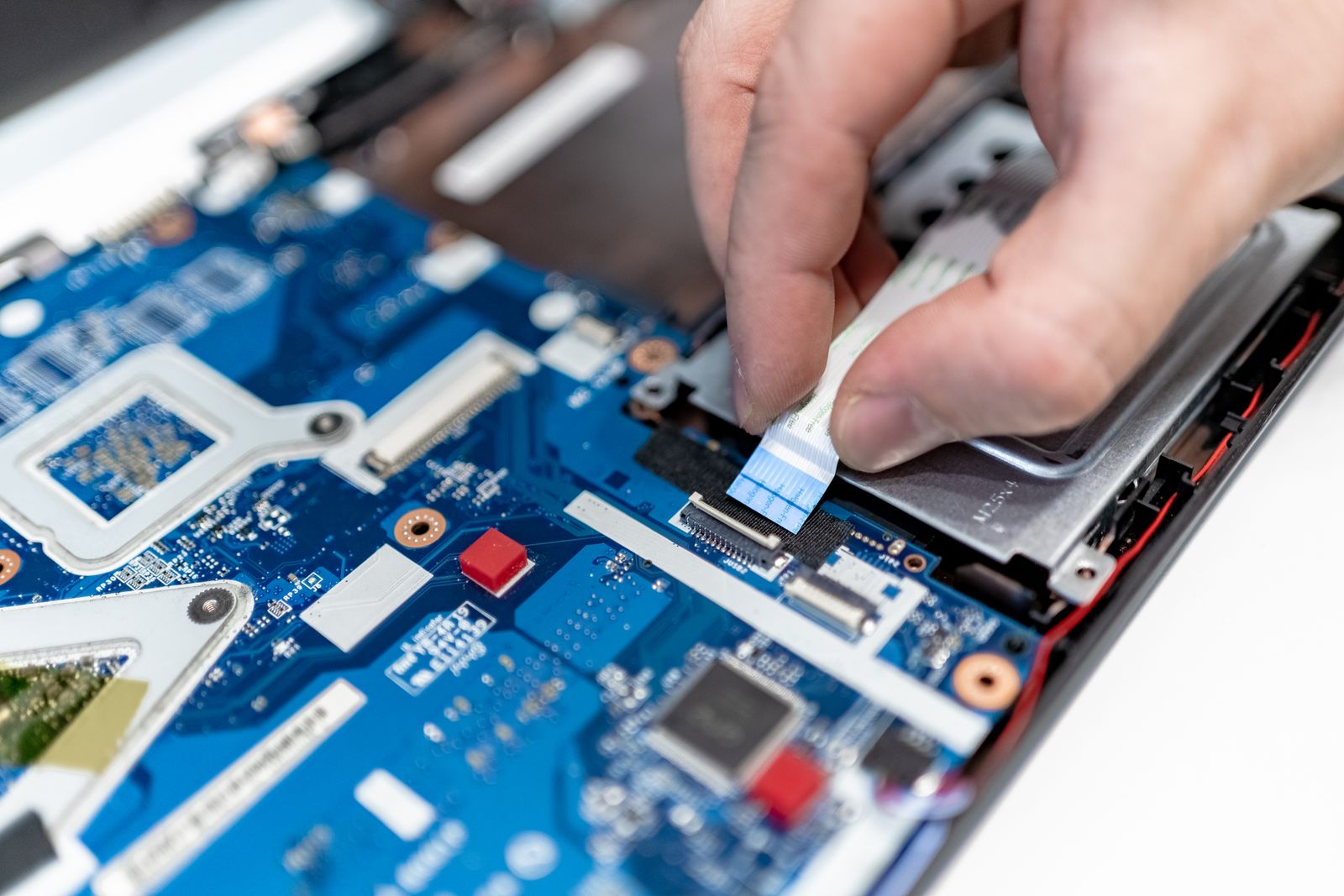
Call for help if any of these are true: the spill was more than a few tablespoons, it was anything other than plain water, the laptop shut itself off when the liquid hit, you smell anything burnt, the keyboard or trackpad acts strangely after drying, the battery looks swollen, or the screen shows lines or flickering. A swollen battery is a safety issue, not just a repair issue, so stop using the machine and keep it away from anything flammable. A proper water damage repair means opening the case, removing the battery, inspecting the board under magnification, cleaning away residue, and replacing only what is actually damaged. It is often far cheaper than a new laptop, especially when it is caught early.
The Bottom Line
If you spilled water on your laptop, the order is simple: power off, unplug, flip it over, and leave it alone. Do not test it, do not heat it, and do not trust the rice. Give a clean water splash two full days to dry, and bring in anything bigger or stickier for a proper cleaning before corrosion sets in. Your files are usually recoverable even in the worst case, so do not panic and do not toss it. If you want a hand, our residential tech support team handles exactly this kind of emergency, and you can see everything else we do on our services page.
Did your laptop just take a drink it was not supposed to? Think Tech Support cleans, repairs, and recovers data from water-damaged laptops for homes and businesses across Central Florida. Call us at (423) 486-6711 or reach out through our contact page for a free quote.